Updated on

Written by
Anh Pham
This guide will show you the basic, safe, and accurate steps to install Brother Hai’s Pho Restaurant on your iPhone/iPad using Sideloadly, from preparing your device to installing the app, helping you avoid risks and ensure a smooth installation process.
Step 1: Enable Developer Mode on your iPhone/iPad
You need to enable Developer Mode. Go to Settings > Privacy & Security > Developer Mode and turn it on, then restart your device.
Step 2: Connect your device to a PC/Mac
On Windows: Download and Install Apple Devices, then connect your iPhone/iPad to Apple Devices.
On Mac: Connect your iPhone via Finder (macOS 13+) or iTunes (older macOS versions).
Note: Make sure your device trusts the computer when prompted.
Step 3: Download and install Sideloadly
On Windows: Download and Install Sideloadly for Windows
On Mac: Download and Install Sideloadly for Mac
Step 4: Install .ipa file
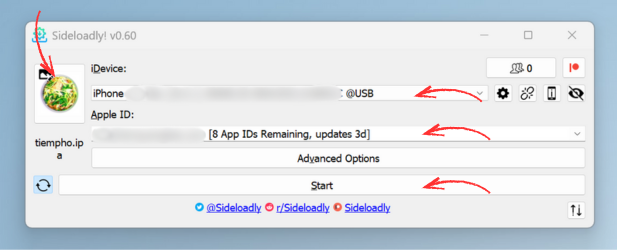
4.1. Open Sideloadly. The app will automatically detect and connect to your iPhone/iPad if it was properly connected in Step 2.
4.2. Enter your Apple ID and password to create a signing certificate.
4.3. Click on the ipa file icon to select the target ipa file.
4.4. Once everything is ready, click Start to begin signing and installing the IPA on your device. The signing and installation process may take a few minutes – do not disconnect your device during this time.
Step 5: Trust the certificate
If you do not trust the certificate, the app will not open.
To trust the certificate on iOS, go to: Settings > General > VPN & Device Management > Developer App and verify the certificate for the app you just installed.